

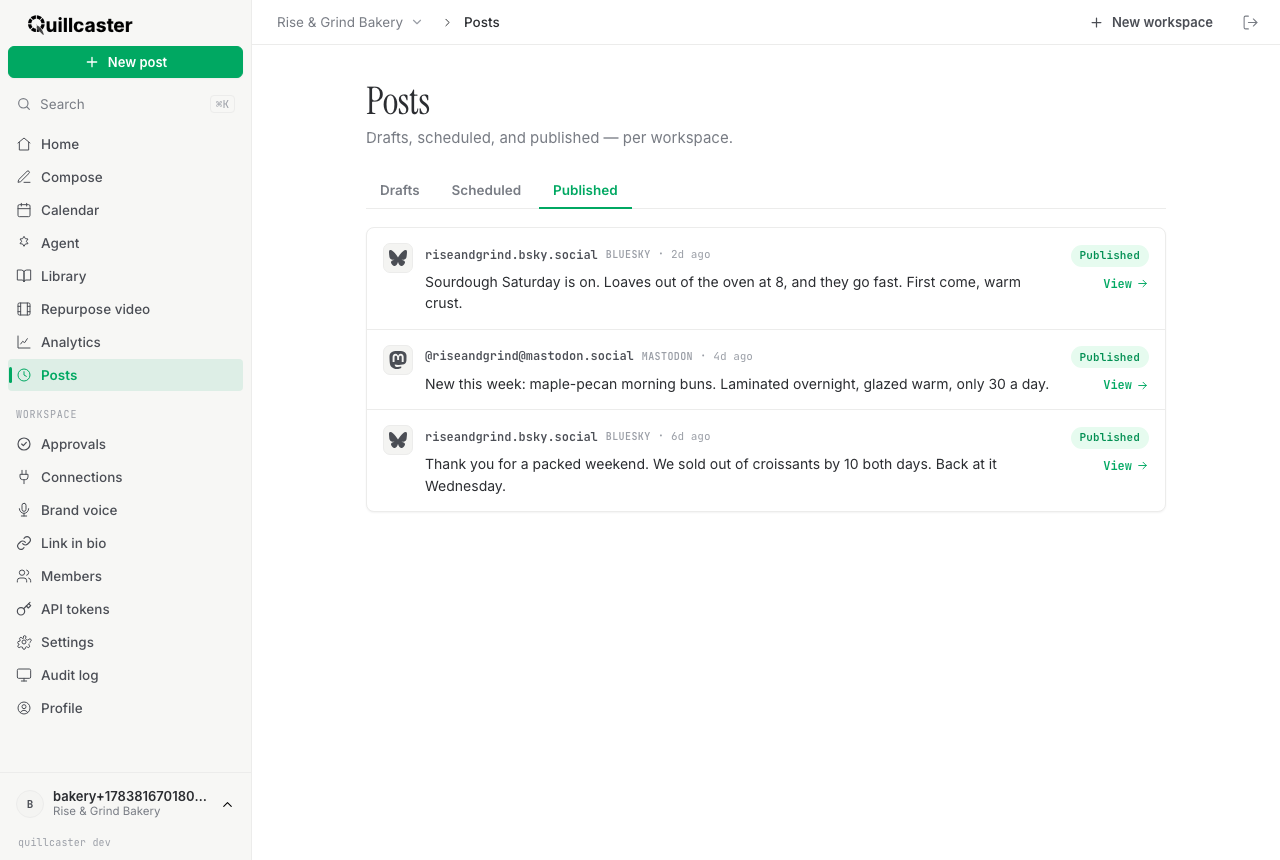
This page covers the Posts screen: the workspace's content across its whole lifecycle, split into three tabs. It is where you check what is still a draft, what is scheduled to go out, and what has already published.
What is the Posts page?
Posts is a read-only history of everything happening in the current workspace, organised into Drafts, Scheduled, and Published tabs. It does not create anything; that happens in Compose. Posts is where you go afterward to see where each thing stands. It is scoped per workspace, so switching workspaces shows a different set. There is no search box; you scan the lists directly.
Why keep an eye on it?
Once you are adapting ideas and scheduling them out, it gets hard to hold the full picture in your head. Posts gives you one honest view: what still needs finishing, what is queued for later, and what actually landed (with a link to the live post). If a publish failed, this is where you find out, so nothing quietly disappears. Teams especially lean on it, alongside the approval workflow, to keep track of who has what in flight.
How to read the Drafts tab
Each draft card shows the original idea text, how long ago it was created, and a chip per platform. Each chip carries the platform name and its adaptation status: Ready, Pending (still generating), or Failed. If the idea came from a URL, it is marked repurposed. Click a card to expand it and read each platform's draft text (read-only here). If an adaptation failed, the card shows the reason in place of the text.
How to read the Scheduled tab
Scheduled lists posts queued to publish at a future time. Each row shows the account handle, the platform, the exact scheduled time, and a preview of the text, tagged Scheduled. This is the same queue you build from Compose when you set a publish time. To set times up, see schedule and calendar.
How to read the Published tab
Published is the history of everything that has left the workspace. Each row shows the handle, platform, and how long ago it went out, with a status tag:
- Published — it went out successfully. If the platform returned a link, a View link opens the live post in a new tab.
- Pending — it is still being sent.
- Failed — it did not go out, with the error shown inline so you know why.
Scheduled items live on their own tab and never appear here until they publish.
Empty tabs
If a tab has nothing in it yet, it says so and points you back to the Composer to create something. So a brand-new workspace starts with three friendly empty states rather than blank space. To get your first item flowing through these tabs, start with write your first post.
