

This page explains how scheduling works in Quillcaster, why you would queue posts ahead, and how to set a time on a draft and view what is coming up on the calendar.
What is scheduling in Quillcaster?
Scheduling has two halves: you set the time on a draft in Compose, and you view what is coming up on the Calendar. It is honest about one thing worth knowing before you start: the calendar is a view of your schedule, not a place you drag posts around.
Why schedule posts ahead?
Posting by hand means being at your desk at the right moment for every network, every day. Scheduling lets you write a batch of posts once and have Quillcaster send each at the time you chose, including good slots you might otherwise miss. The calendar then gives you a plan-at-a-glance, so you can see gaps and busy days across all your platforms in one place instead of guessing what is already queued.
How to schedule a post from Compose
Scheduling happens on the individual draft card, once you have adapted an idea and have a connected account for that platform.
- In Compose, get a draft ready on the card you want to schedule.
- Click the small calendar (schedule for later) button in the card's footer.
- Under Publish at, pick a date and time. Past times are not allowed.
- If you want a suggested slot, tap one of the Best times chips and it fills the time in for you. These times are shown in UTC.
- The action button now reads Schedule. Click it to queue the post.
Leave the time empty and the same button publishes immediately instead. If a draft has no connected account for its platform yet, you will see a prompt to connect one first (see Connect a social account).
How to view what is scheduled on the Calendar
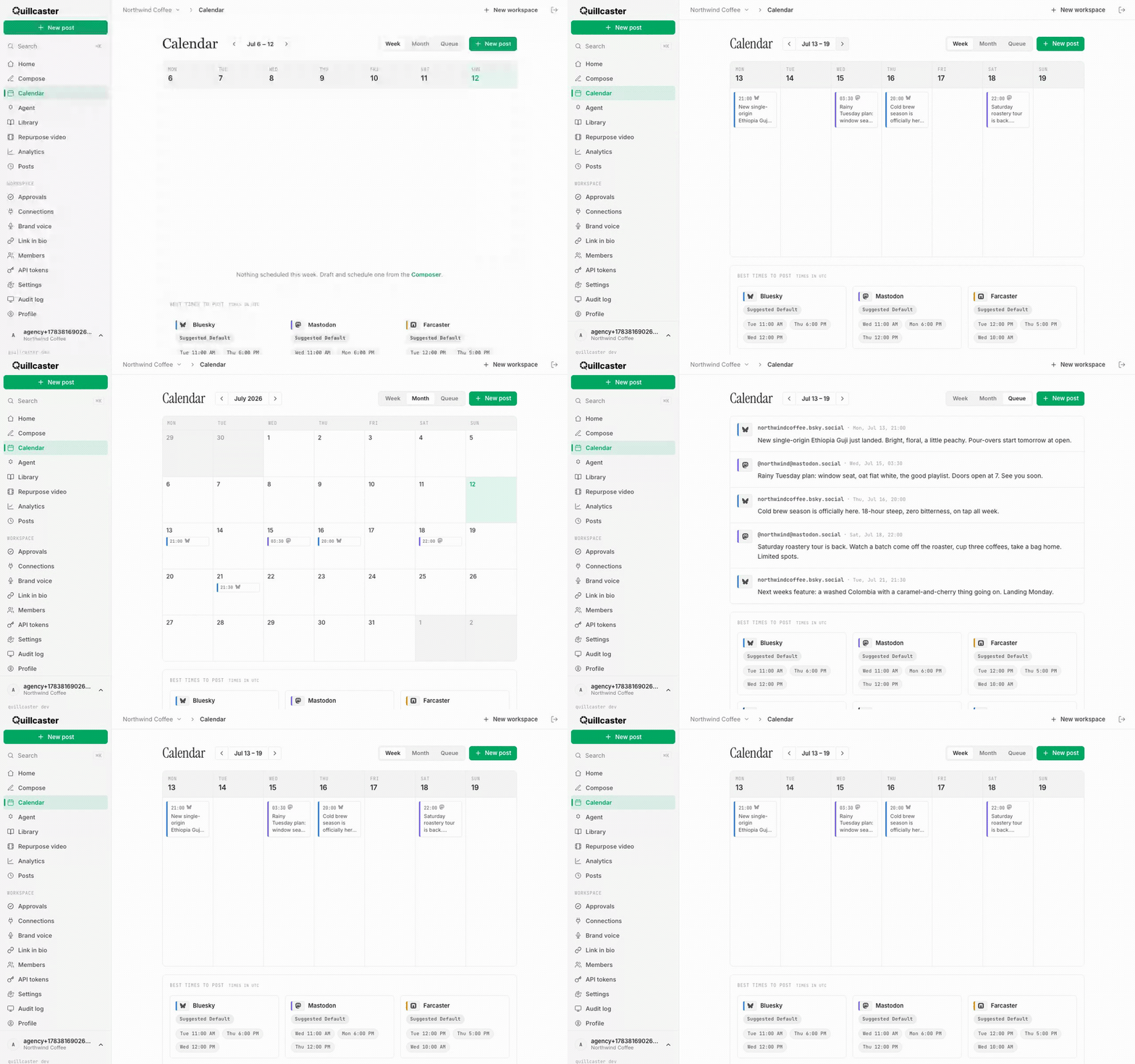
Open Calendar from the sidebar to see everything you have scheduled. There are three views, switched with the buttons in the header:
- Week: a seven-day grid with each post placed on its day and time.
- Month: a full month, with up to three posts shown per day and a "+N more" hint when a day is busy.
- Queue: a flat, chronological list of upcoming posts.
Use the arrows to step back and forward (by week in Week view, by month in Month view), and click the date range in the middle to jump back to today. The New post button in the header takes you straight to Compose.
How to use best times to post
Below the calendar is a Best times to post panel with recommended slots per platform, shown in UTC. Each platform is tagged either "suggested default" or "learned from your posts" once Quillcaster has enough of your own activity to learn from. These are the same suggestions that appear as the Best times chips when you schedule in Compose.
How to change or remove a scheduled post
Here is the honest limitation: the calendar is read-only. You cannot drag a post to a new day or edit it in place on the calendar. To change a scheduled post, go back to Compose, edit or re-draft it, and schedule it again for the time you want. Think of the calendar as your plan-at-a-glance, and Compose as where the changes are made. For workspaces that review posts before they go out, see Approval workflow.
