

This page explains what adapting an idea means in Quillcaster, why one caption pasted everywhere falls flat, and how to turn a single idea into a distinct draft for each platform.
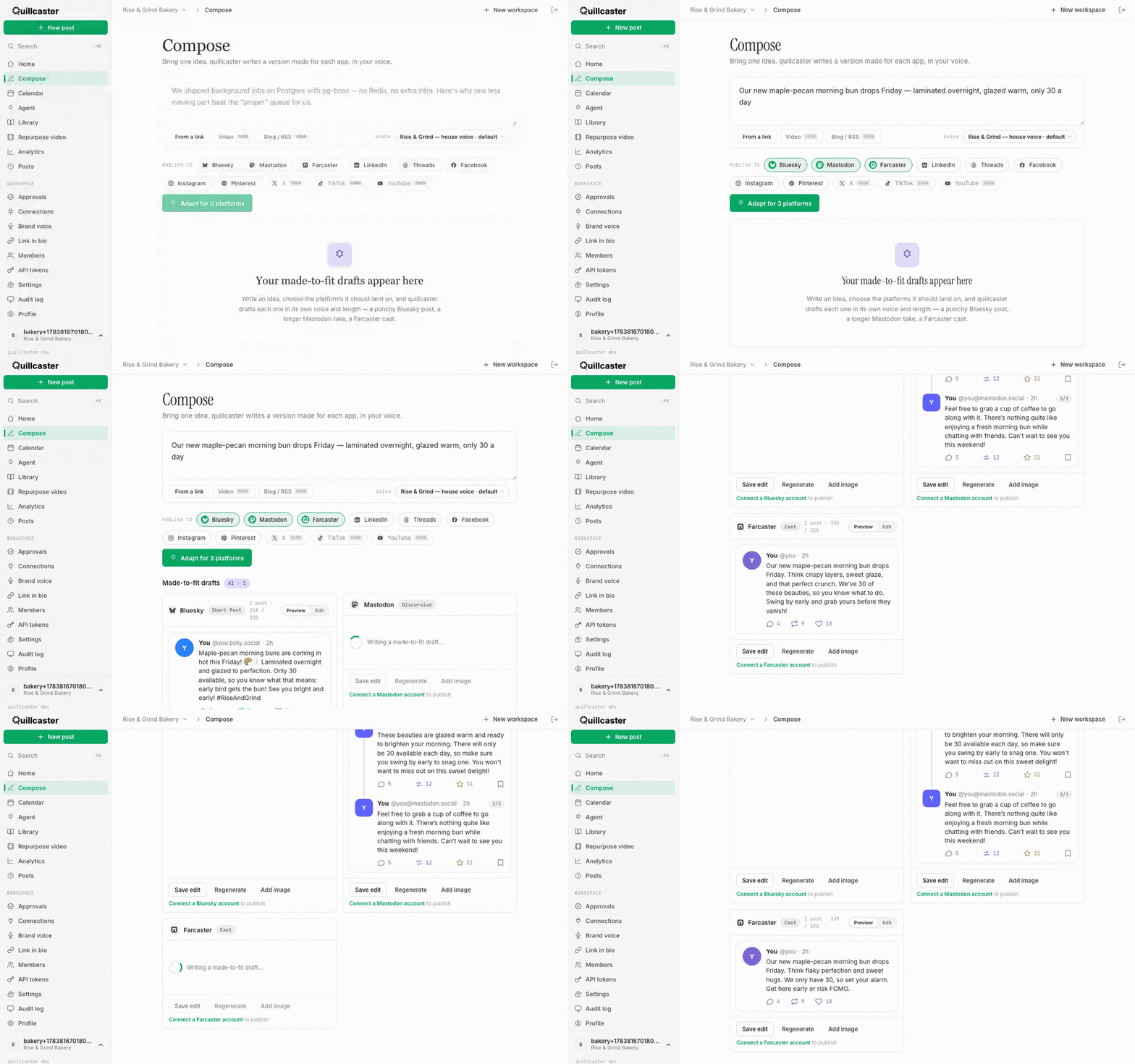
What is adapting an idea?
Adapting takes a single idea you type into Compose and writes a separate draft for each platform you pick, shaped to that platform's norms and limits. Thread-friendly platforms like Bluesky, Farcaster, and Threads get a structured thread, while Mastodon and LinkedIn get one longer post written to suit them. You are not pasting the same caption five times. You are getting drafts that each belong where they land.
Why one caption pasted everywhere falls flat
Every network has its own habits and its own hard limits. A short-form app rewards a hook and a reply chain; a longer-form one reads better as a single, discursive post. Character caps differ too, so the same text that fits one place gets cut off in another. What lands as a punchy thread on Bluesky feels clipped on Mastodon, and a LinkedIn audience expects a different tone again. Adapting instead of copying is what makes each post feel native rather than recycled.
How to adapt an idea
- Open Compose from the sidebar.
- Type your idea into the box. If you want the drafts to sound like your brand, pick a voice from the Voice selector first (see Set your brand voice).
- Under Publish to, tap each platform you want a draft for.
- Click Adapt for N platforms.
- A card appears for each platform and fills in as its draft is written.
You can also start from a link instead of typing. Turn on From a link, paste a blog or article URL, and Quillcaster reads the page and drafts per platform. See Repurpose a blog post for that path.
How to preview and edit each draft
Every ready card has two views you toggle between: Preview shows the post as it will look natively, and Edit shows the text in an editable box. To change the wording, switch to Edit, make your changes, and click Save edit. If you would rather start that one platform over, click Regenerate and Quillcaster writes a fresh version for that card alone, leaving the others untouched.
How to read the character counter
Each card shows a live counter against that platform's limit. For thread-capable platforms it shows the number of posts in the thread plus the longest segment against the per-post limit. For single-post platforms it shows the character count against the limit. If a draft runs over, the counter turns red and you will need to trim it before you can publish.
Some platforms need an image
Instagram and Pinterest are image-first, so a draft for either will not publish until you attach a picture. Click Add image on the card to upload one. For other platforms an image is optional.
How to publish or schedule
Once a draft looks right, you can publish it now or schedule it for later, as long as you have a connected account for that platform. Today you can connect and post to Bluesky, Mastodon, and Farcaster; other platforms can be drafted while their connections roll out. See Connect a social account and Schedule posts and use the calendar to go further.
