

Some platforms will not accept a post without an image, and re-uploading the same picture for every account is a waste of your time. The media library fixes both: upload once, and quillcaster keeps the right sizes ready for each platform.
What is the media library?
The media library is a per-workspace store of images you upload. Everyone with access to the workspace shares the same library, so an image is only ever uploaded once.
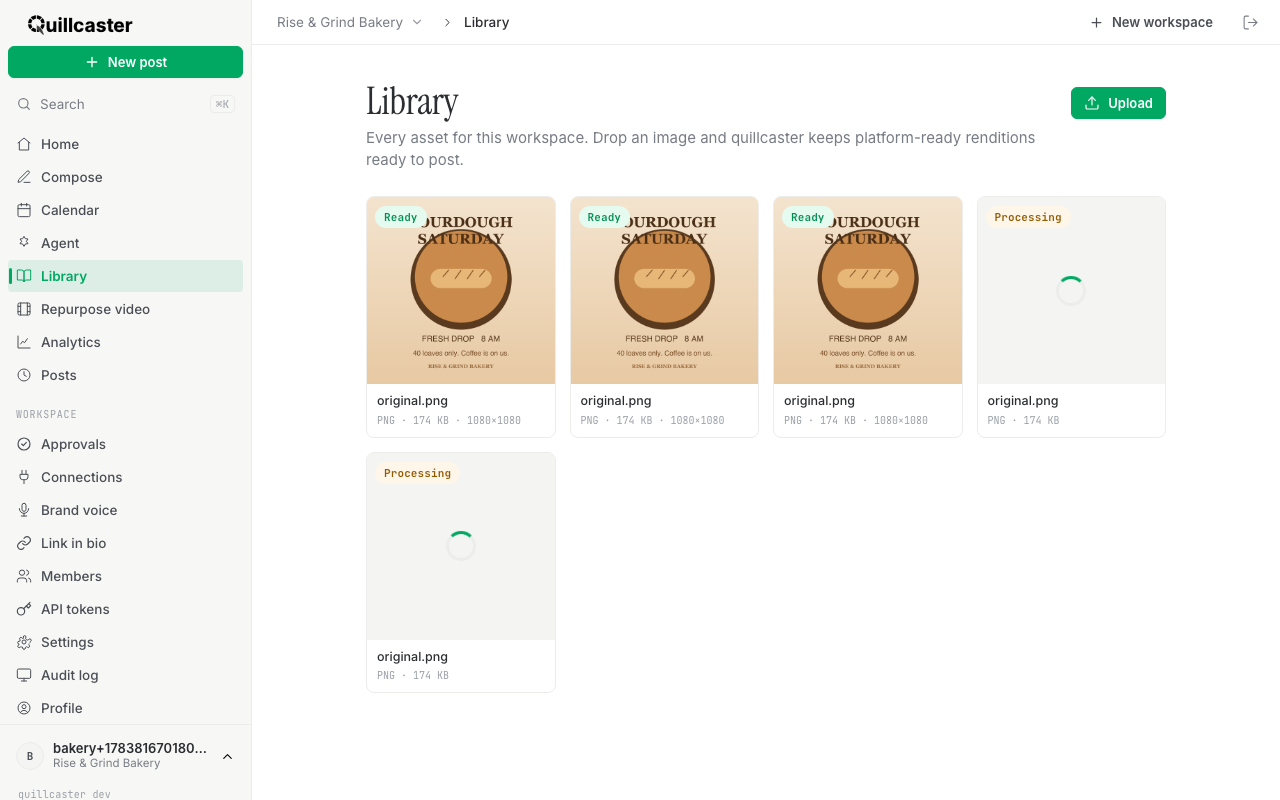
When you add an image, a worker processes it in the background and produces per-platform variants: the same picture resized to fit the accounts you post to. While that runs, the image shows a Processing tag. When it is done it flips to Ready, and open its detail to see the variants that were generated. quillcaster accepts JPEG, PNG, WebP, GIF, and AVIF images, up to 25 MiB each.
Two honest limits worth knowing up front. The library is images only today, so no video uploads yet. And although the library invites you to "drop an image," there is no drag-and-drop: you click Upload and pick a file. The wording is ahead of the feature.
Why add images to your posts?
A couple of platforms are image-first. Instagram and Pinterest both require an image on every post, and quillcaster enforces that: a draft for either one cannot be published or scheduled until you attach a picture. On the rest, an image is optional but usually helps a post land.
The shared library saves you from re-uploading. Add a picture once, and you can attach it to a post for any connected account without hunting for the file again. Because quillcaster handles social media image sizes for you, you do not have to crop or resize by hand for each app, the per-platform variants take care of that.
How to add an image
You will need editor or admin access in the workspace. Viewers can browse the library but cannot upload.
Step 1: Upload to the library
- Open Library from the sidebar.
- Click Upload.
- Choose an image file from your computer.
- The image appears right away with a Processing tag while the worker builds its variants, then turns to Ready.
Click any image to open its detail, where you can see the per-platform variants that were generated.
Step 2: Attach it to a post
- In Compose, find the draft card for the platform you want.
- Click Add image on that card, then choose your image file. It uploads and processes the same way.
- Once attached, the button reads Replace image if you want to swap it, and there is a remove control to take it off again.
For an image-first platform like Instagram or Pinterest, the draft will tell you an image is required and keep the publish and schedule controls locked until you add one.
If something goes wrong
If an upload is rejected, check the file type and size. quillcaster takes JPEG, PNG, WebP, GIF, and AVIF, up to 25 MiB. If an image stays on Failed, the processing step could not handle it, so try a different file or re-export it.
What to do next
With an image attached, write your first post, let the AI adapt one idea for every platform, and drop it onto the calendar.
