

This page covers inviting teammates into a workspace by email, what the three roles mean, and how to change or remove access later.
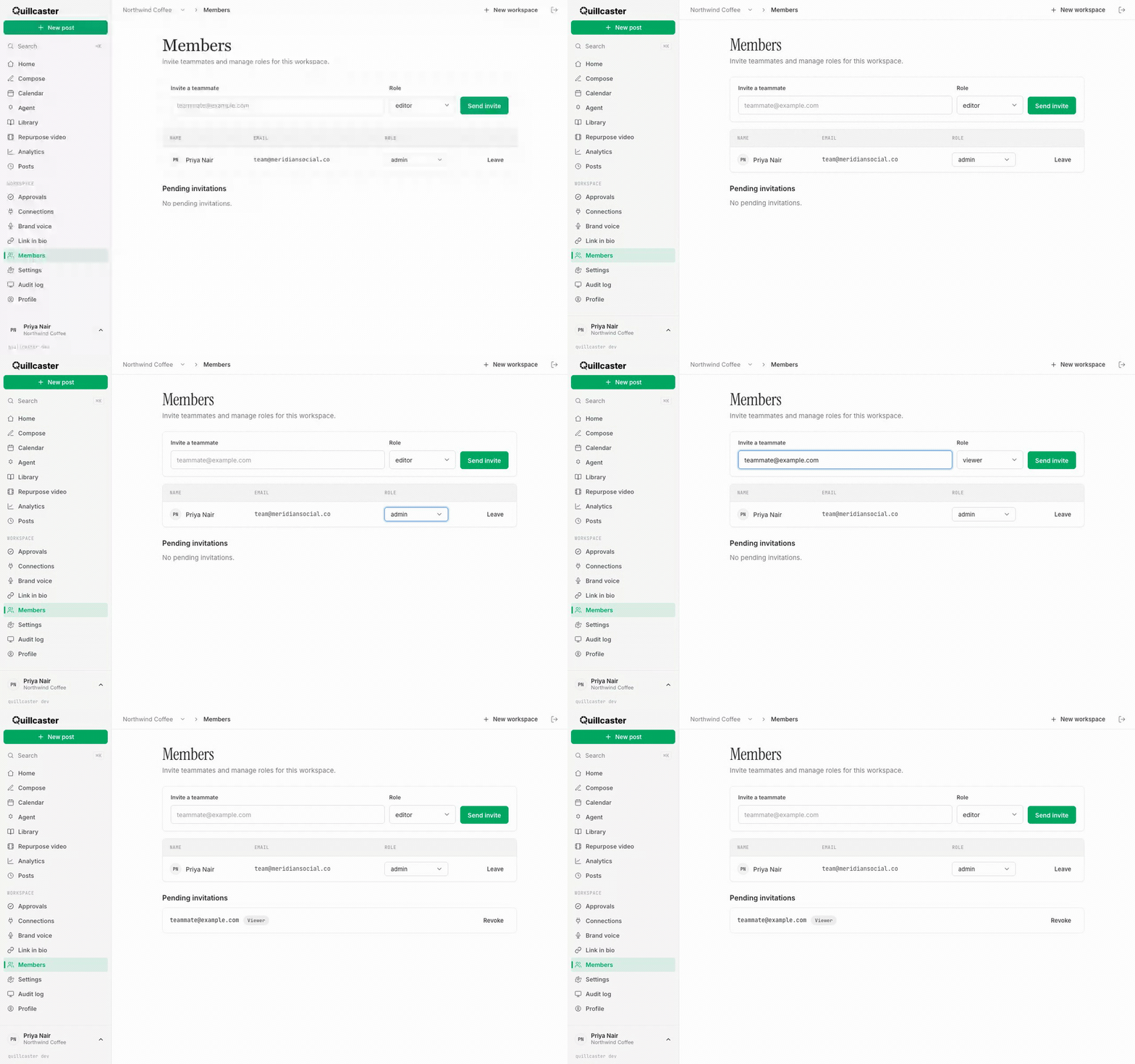
What are members and roles?
A member is anyone you've invited into a workspace, and their role is the one setting that decides what they can do there. Every member has exactly one role:
- Admin: full control. Admins manage the workspace and its settings, invite and remove members, change roles, and review posts in the approval workflow. They can also do everything an editor can.
- Editor: the day-to-day creator. Editors create and edit posts, adapt ideas, attach images, publish, and schedule. When approvals are on, editors submit their drafts for review.
- Viewer: read-only. Viewers can browse drafts and see who's in the workspace, but can't adapt, edit, or publish anything.
Everything here happens on the Members page in the sidebar. Inviting people and managing roles is admin-only. If you're an editor or viewer you can see who's in the workspace, but the invite form and controls won't show.
Why give people different roles?
Roles let you open a workspace to your team without handing everyone the keys. A freelancer can draft without being able to publish, a client can watch without touching anything, and only the people you trust can change settings or remove others. Roles are enforced everywhere, not just hidden in the interface, so a viewer genuinely can't publish even if they go looking. Because invites are per workspace, someone you add here only gets access to this one brand, not the rest.
How to invite a teammate
- Go to Members.
- Under Invite a teammate, type their email address.
- Pick a Role (it starts on editor).
- Click Send invite.
They'll get an email to join. Until they accept, their invite sits under Pending invitations at the bottom of the page.
How to change someone's role
As an admin, find the person in the members table and pick a new role from the dropdown next to their name. The change takes effect right away. One rule to know: a workspace must always keep at least one admin, so Quillcaster won't let you demote the last one.
How to remove a member or leave
In the members table, use the button at the end of a person's row. Next to someone else it reads Remove and takes their access away. Next to your own name it reads Leave, which removes you from the workspace. As with roles, you can't remove or leave as the final admin, since every workspace needs one.
How to revoke a pending invite
Sent an invite by mistake, or to the wrong address? Find it under Pending invitations and click Revoke. The invitation stops working straight away.
With people and roles sorted, a good next step is turning on an approval workflow so drafts get a sign-off before they publish. If you manage several brands, see workspaces and switching between them for keeping each team separate.
