

This page covers the link-in-bio builder: a single public page that gathers all the links you want to share, styled to your brand and hosted for you at a /b/<slug> URL.
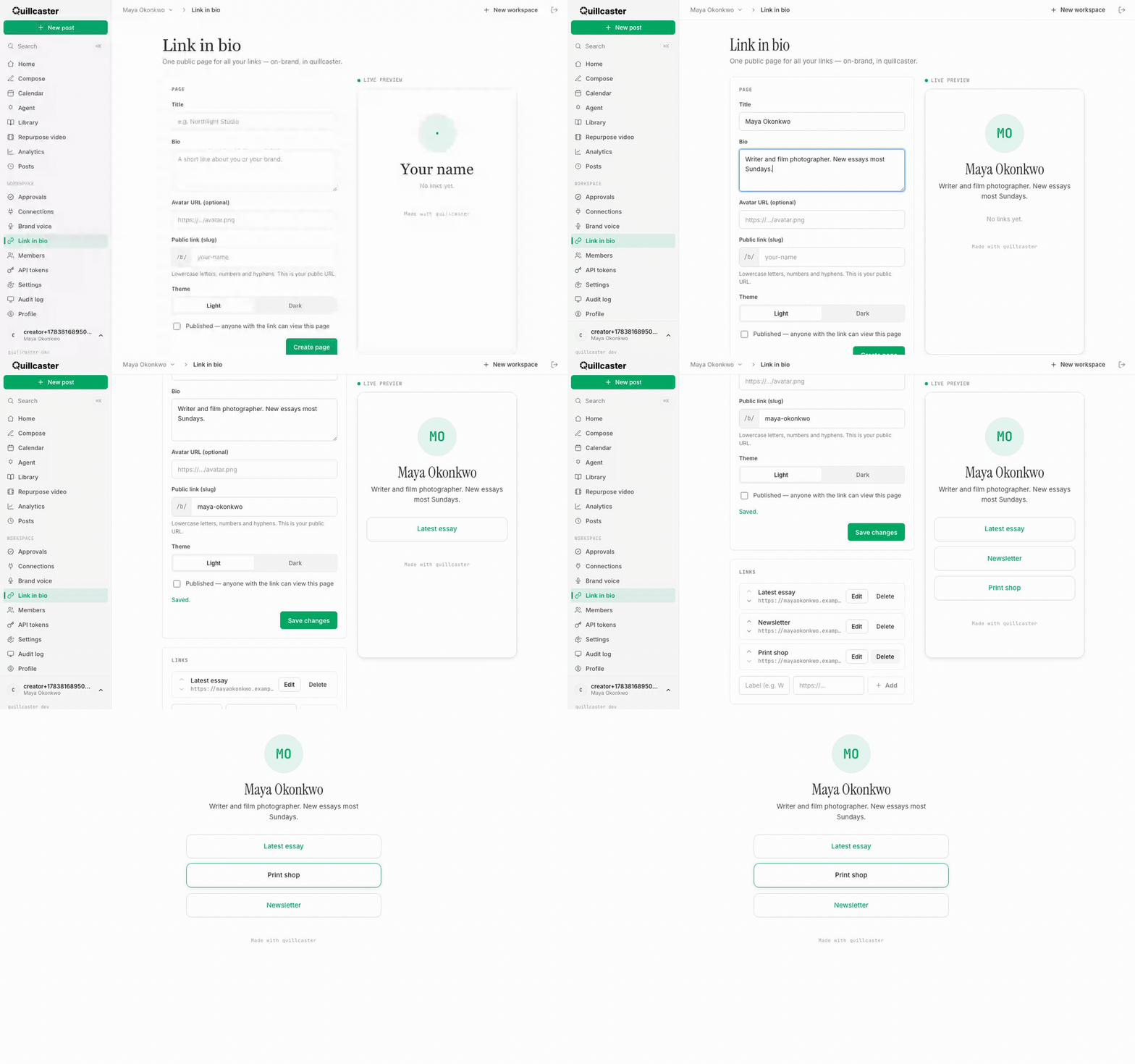
What is a link-in-bio page?
A link-in-bio page is a simple, public landing page with a title, a short bio, an optional avatar, and a list of links you choose. It lives at a public URL like yoursite/b/your-name, and anyone with the link can view it, no account needed. Quillcaster builds it as part of your workspace, so it shares your branding and stays in one place with the rest of your content.
Why have one?
Most social profiles let you post exactly one link. A link-in-bio page solves that: you share the single page, and it points people to everything else, your latest post, your shop, your newsletter, your other profiles. Update the page any time and the shared link never changes. It is the natural companion to everything you publish through Quillcaster, and it fits neatly alongside the rest of the product. If you run several brands, see workspaces and switching, since each workspace gets its own page. Creators and agencies both lean on it; see for creators.
How to create your page
You need the editor or admin role. Open Link in bio and fill in the Page form:
- Title — the name shown at the top (for example, your brand).
- Bio — a short line about you or your brand.
- Avatar URL — optional, a link to an image.
- Public link (slug) — the last part of your URL, under
/b/. Use lowercase letters, numbers, and hyphens. - Theme — choose Light or Dark.
Click Create page. A live preview on the right shows the page as you build it.
How to add and order links
One thing to know: you can only add links after you have saved the page for the first time. Until then, the Links panel says to save first. Once the page exists:
- In the Links panel, type a Label (for example, "Website") and a URL, then click Add.
- Repeat for each link you want.
- Reorder links with the up and down arrows on each row. The order you set is the order visitors see.
- Use Edit or Delete on a row to change or remove a link.
How to publish and share it
Your page starts as a draft. When you are ready, tick Published — anyone with the link can view this page, then Save changes. A tag at the top shows whether the page is Published or still a Draft. At the top of the editor, a URL bar shows your public /b/<slug> address with Copy and Open buttons. Copy it into your profile bios and you are live. If you unpublish it later, the link shows a clean "this page isn't available" message instead.
