

Bluesky is one of the platforms you can post to from quillcaster today. This guide walks you through linking your account with a Bluesky app password, so you never hand over your real login.
What is connecting Bluesky?
Connecting Bluesky links your Bluesky account to a quillcaster workspace so we can publish your posts there. You do it with a Bluesky app password, not your normal password.
An app password is a separate credential you create inside Bluesky, just for one app. It is safer than your real password: you can revoke it from Bluesky at any time without changing your main login, and it never gives an app your account recovery. In quillcaster the app password is stored encrypted and never shown again after you save it.
If you have connected other accounts before, this follows the same path as any other platform. See Connect an account for the general flow.
Why connect Bluesky?
Bluesky runs on the open AT Protocol, and it is one of the fediverse-first platforms quillcaster treats as a first-class citizen. It is postable right now, no app review, no waiting.
Once it is connected, Bluesky becomes a target for everything else quillcaster does. You can write one idea and let the AI shape a version made to fit Bluesky, then queue or schedule it alongside your other accounts. If you also run a Mastodon account, connecting Mastodon gives you broad open-social coverage in a couple of minutes.
How to connect Bluesky
You will need editor or admin access in the workspace. Viewers cannot connect accounts.
Step 1: Create a Bluesky app password
- Open Bluesky and go to Settings, then App Passwords.
- Create a new app password and give it a name you will recognise, like "quillcaster".
- Copy the password Bluesky shows you. It looks like
xxxx-xxxx-xxxx-xxxx. Bluesky only shows it once, so keep it handy for the next step.
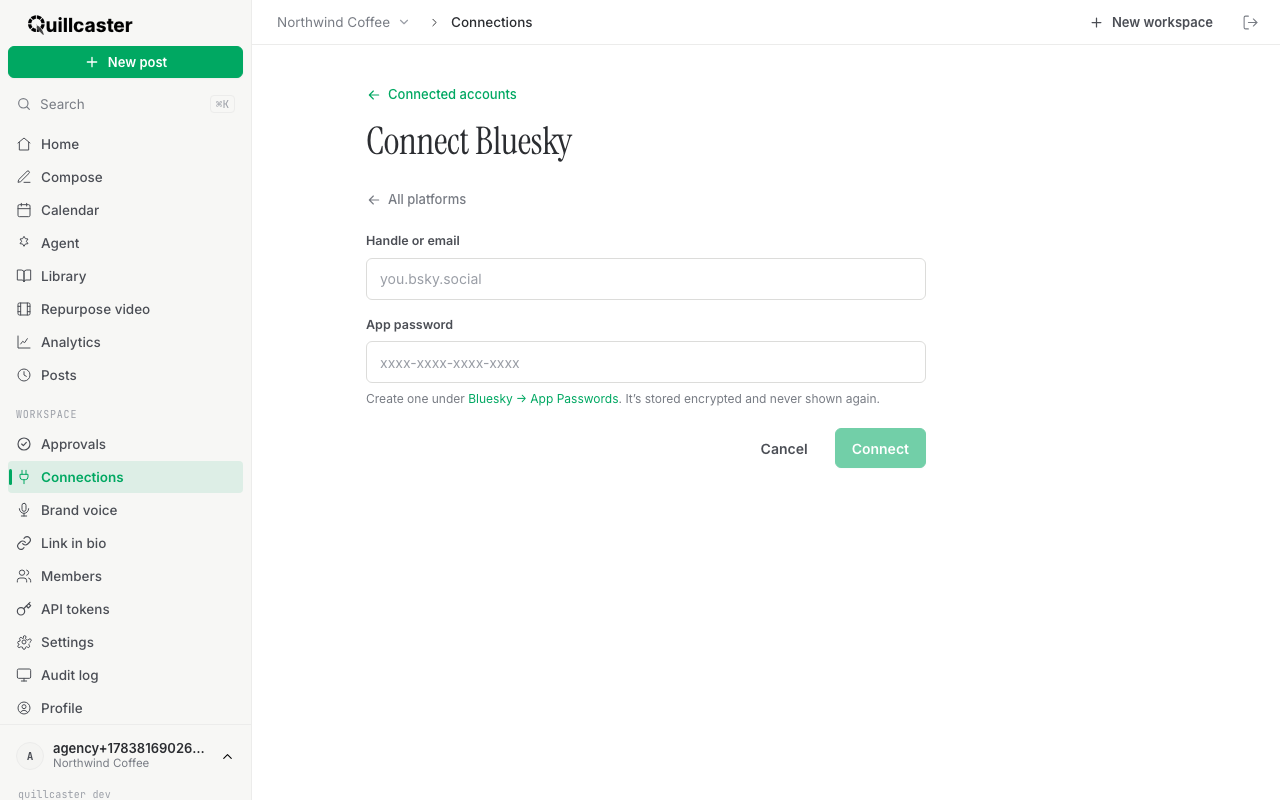
Step 2: Connect it in quillcaster
- Go to Connections, then click Connect account.
- Choose the Bluesky card.
- In Handle or email, enter your handle, like
name.bsky.social. - In App password, paste the app password you just created.
- Click Connect.
When it works, you land back on your connected accounts and Bluesky shows a green Active tag. That is it, you are ready to post.
If something goes wrong
If quillcaster says it could not verify those credentials, double-check two things: that you typed your full handle (including the .bsky.social part or your custom domain), and that you pasted the app password rather than your normal Bluesky password. The two are different, and only the app password will work here.
Want to disconnect later? Revoke the app password from Bluesky under Settings, then App Passwords. Because it is scoped to quillcaster alone, revoking it stops our access without touching the rest of your account.
What to do next
With Bluesky connected, write your first post or let the AI adapt one idea for every platform. Curious what else is on the roadmap? Have a look at our features.
