

This page covers the approval workflow: an optional gate that holds every post until an admin signs off. It is built for agencies and teams where a draft should never publish until someone has reviewed it.
What is the approval workflow?
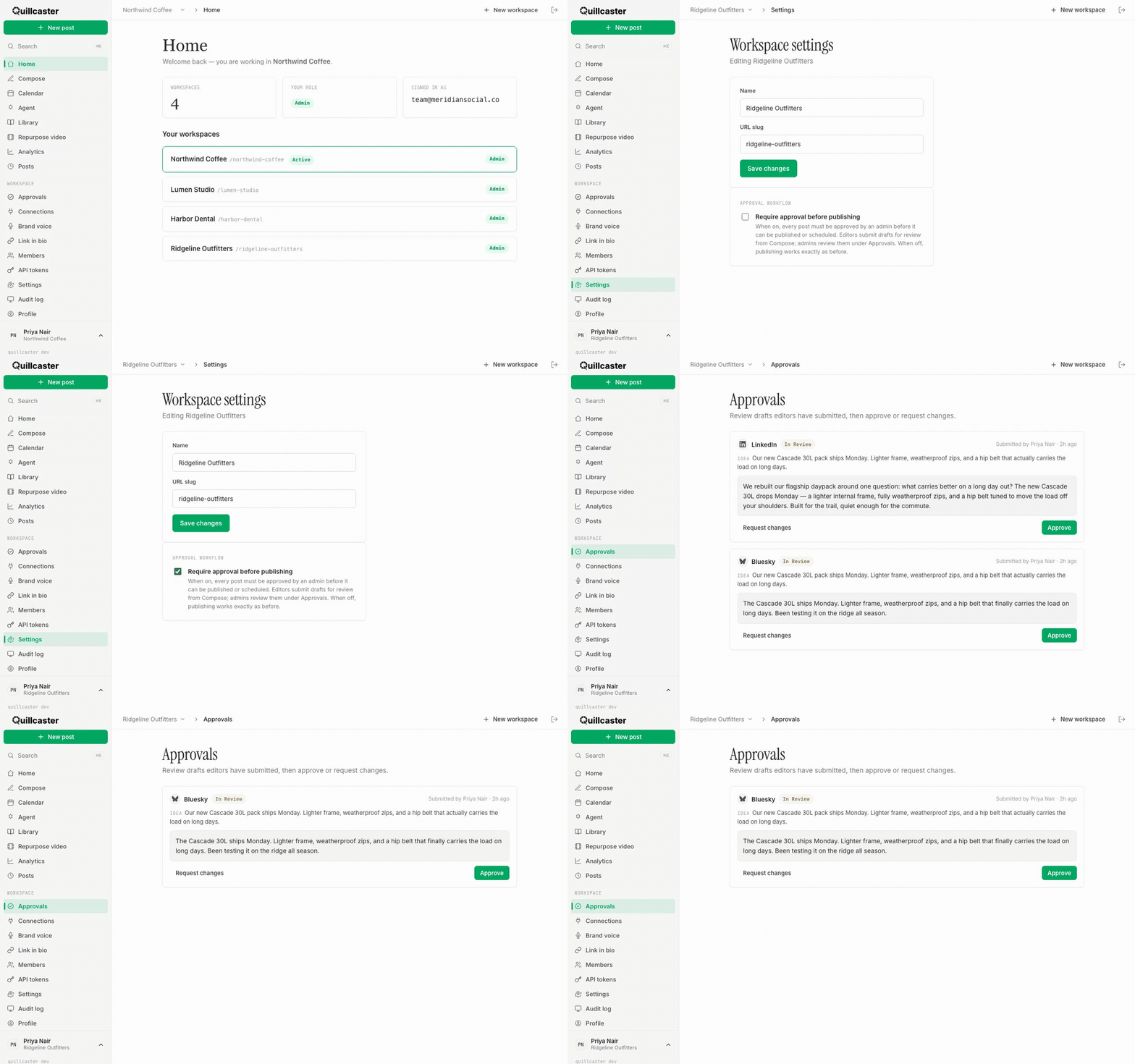
When approvals are on, a draft cannot be published or scheduled until an admin has approved it. Editors still write and adapt as usual, but instead of publishing straight away, they submit for review. Admins see those submissions in one place, the Approvals queue, and either approve them or send them back with a note. When the setting is off, publishing works exactly as before, with no gate.
Why use it?
Sometimes the person writing is not the person who gets the final say. A client wants to sign off before anything hits their feed. A junior editor drafts, a lead reviews. Approvals make that explicit instead of relying on a private message and good intentions. Nothing publishes by accident, and the reviewer's notes travel with the draft so feedback does not get lost. It pairs closely with invite members and roles and applies per workspace, so you can require it for a client workspace and leave your own open. See also workspaces and switching.
How to turn approvals on
This is an admin-only setting.
- Go to Workspace settings.
- Under Approval workflow, tick Require approval before publishing.
- The switch saves on its own. From now on, every post in this workspace must be approved before it can be published or scheduled.
How editors submit a draft for review
With approvals on, each draft in Compose shows its approval state and gates the publish button. When a draft is ready:
- In Compose, finish and save the draft as normal.
- Click Submit for review on the draft card.
- The draft moves to In review and waits. The editor sees a "waiting for an admin to review" note.
If an admin sends it back, the note they left appears on the card, and the editor can edit and submit it again. Editing a draft resets its approval, so a changed post always goes back through review.
How admins review the queue
The Approvals queue is admin-only. Editors submit here but cannot review. As an admin:
- Open Approvals. Every draft currently in review is listed, with who submitted it and when, the original idea, and the draft text.
- Click Approve to clear it. It becomes ready to publish or schedule.
- Or click Request changes, type a note explaining what to change (the note is required), and send it back to the editor.
Those are the two review actions: approve, or request changes with a note. There is no separate reject or delete button; sending a draft back with notes is how you decline it for now, and the editor can revise and resubmit. You can follow each item's state on the Posts page too.
